
Merchant Integration Guide - AI PAB Model Context Protocol (MCP)
Prerequisites
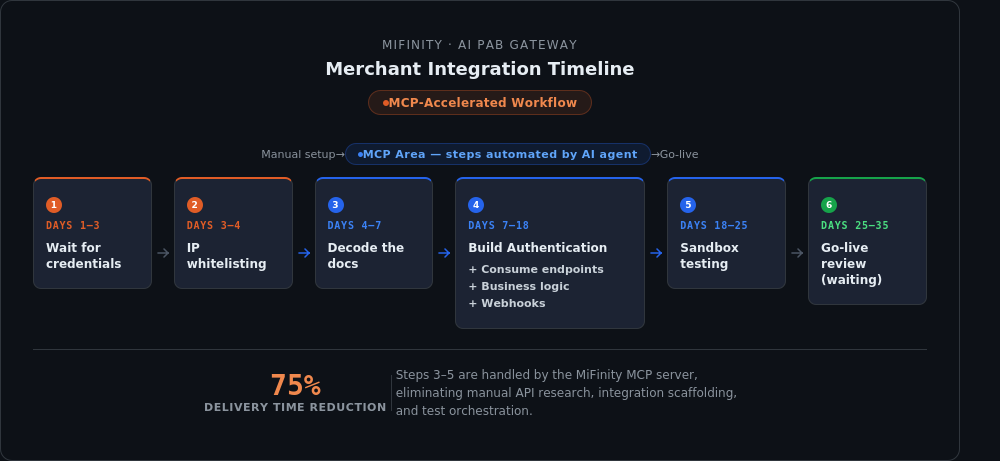
Complete these steps before starting the integration:
-
Obtain your MiFinity API key — Your key must already exist in the MiFinity API system. Contact the API/development team if you need a new key. Have your alphanumeric key string ready.
-
Submit your public IP address(es) — Provide your public egress IP(s) to the DevOps team. They will add them to the API Gateway allowlist. Integration will not work until your IPs are allowlisted.
-
Install an MCP-compatible client — Use one of the following: Claude Code, Cursor, VS Code (with MCP extension), Codex, or another MCP-compatible client.
Gateway URLs
| Environment | URL | Purpose |
|---|---|---|
| Production | https://mcp.payanybank.mifinity.com | Live interaction with the Production PAB endpoints. This can be used to obtain the required data in order to complete a PAB payment. |
| Demo | https://mcp-demo.payanybank.mifinity.com | Testing with restricted test data |
Note that direct live payouts are currently disabled within this MCP.
Client Setup
Claude Code uses a .mcp.json file in your project directory.
Step 1: Create the configuration file
Create .mcp.json in your project root:
{
  "mcpServers": {
    "ai-pab-gateway": {
      "type": "http",
      "url": "https://mcp.payanybank.mifinity.com",
      "headers": {
        "Authorization": "Bearer ${MIFINITY_API_KEY}",
        "x-api-version": "1"
      }
    }
  }
}
Step 2: Set the environment variable
export MIFINITY_API_KEY="your_api_key_here"$env:MIFINITY_API_KEY = "your_api_key_here"To persist the variable across sessions, add the export to your shell profile:
export MIFINITY_API_KEY="your_api_key_here"Step 3: Start Claude Code
claude-codeClaude Code automatically loads the MCP server configuration from .mcp.json.
Step 4: Verify the tools
Confirm that 4 MCP tools are available in Claude Code:
aipab___get_supported_currenciesaipab___get_bank_detail_fieldsaipab___get_bank_nameaipab___initiate_bank_payout
Cursor uses a similar MCP configuration pattern.
Step 1: Create the configuration file
Create .cursor/mcp.json in your project root:
{
  "mcpServers": {
    "ai-pab-gateway": {
      "type": "http",
      "url": "https://mcp.payanybank.mifinity.com",
      "headers": {
        "Authorization": "Bearer ${MIFINITY_API_KEY}",
        "x-api-version": "1"
      }
    }
  }
}
Step 2: Set the environment variable
Follow the same environment variable setup as the Claude Code tab.
Step 3: Restart Cursor
Close and reopen Cursor to load the MCP server configuration.
Step 4: Verify the tools
Check that the 4 PAB tools are available in Cursor's AI chat panel.
VS Code requires an MCP extension. The most common option is Continue.dev.
Option 1: Continue.dev Extension
- Open VS Code Extensions (
Ctrl+Shift+X/Cmd+Shift+X). - Search for "Continue" and install "Continue - AI Code Assistant".
- Open the Command Palette (
Ctrl+Shift+P/Cmd+Shift+P), search for "Continue: Open Config", and add the following toconfig.json:
{
  "mcpServers": [
    {
      "name": "ai-pab-gateway",
      "type": "http",
      "url": "https://mcp.payanybank.mifinity.com",
      "headers": {
        "Authorization": "Bearer ${MIFINITY_API_KEY}",
        "x-api-version": "1"
      }
    }
  ]
}- Set the
MIFINITY_API_KEYenvironment variable (see the Claude Code tab for instructions). - Restart VS Code.
- Open the Continue chat panel — the tools should appear in available actions.
Option 2: Other MCP Extensions
If you use a different MCP extension for VS Code:
- Follow the extension's own configuration documentation.
- Use the HTTP MCP server pattern shown above.
- Set the
MIFINITY_API_KEYenvironment variable and restart VS Code.
Codex configuration varies by implementation.
Step 1: Configure the MCP server
Add to your Codex configuration file (location depends on your setup):
{
  "mcp_servers": {
    "ai-pab-gateway": {
      "type": "http",
      "url": "https://mcp.payanybank.mifinity.com",
      "headers": {
        "Authorization": "Bearer ${MIFINITY_API_KEY}",
        "x-api-version": "1"
      }
    }
  }
}
Step 2: Set the environment variable
Follow the same environment variable setup as the Claude Code tab.
Step 3: Restart Codex
Restart your Codex instance to load the configuration.
Most MCP clients follow a similar HTTP server configuration pattern.
Standard MCP HTTP configuration
{
  "mcpServers": {
    "ai-pab-gateway": {
      "type": "http",
      "url": "https://mcp.payanybank.mifinity.com",
      "headers": {
        "Authorization": "Bearer ${MIFINITY_API_KEY}",
        "x-api-version": "1"
      }
    }
  }
}
Key points
| Setting | Value | Notes |
|---|---|---|
| Server Type | http | Not WebSocket or stdio |
| URL | https://mcp.payanybank.mifinity.com | Use the demo URL for testing |
Authorization header | Bearer ${MIFINITY_API_KEY} | Use an environment variable — never hardcode |
x-api-version header | 1 | Required on every request |
Common configuration file locations
- Project-level:
.mcp.json,.cursor/mcp.json - User-level:
~/.config/mcp/config.json,~/.mcp.json - Tool-specific: Check your client's documentation
Validation
Quick test
Ask your AI agent:
What currencies are supported for Ireland?Expected response: A list of currency codes such as EUR, USD, GBP. This calls aipab___get_supported_currencies and confirms connectivity.
Full validation
Run these prompts in sequence to validate all four tools:
-
Get supported currencies:
What currencies can I use for payouts to France? -
Get required fields:
What fields do I need for a EUR payout to Ireland? -
Get bank list (if applicable):
What banks are available for HKD payouts to Hong Kong? -
Demo payout (AI demo environment only):
Create a test payout for €10 to Ireland with IBAN IE29AIBK93115212345678
Only run test payouts in the AI demo environment with test data. Production payouts transfer real money.
Available Tools
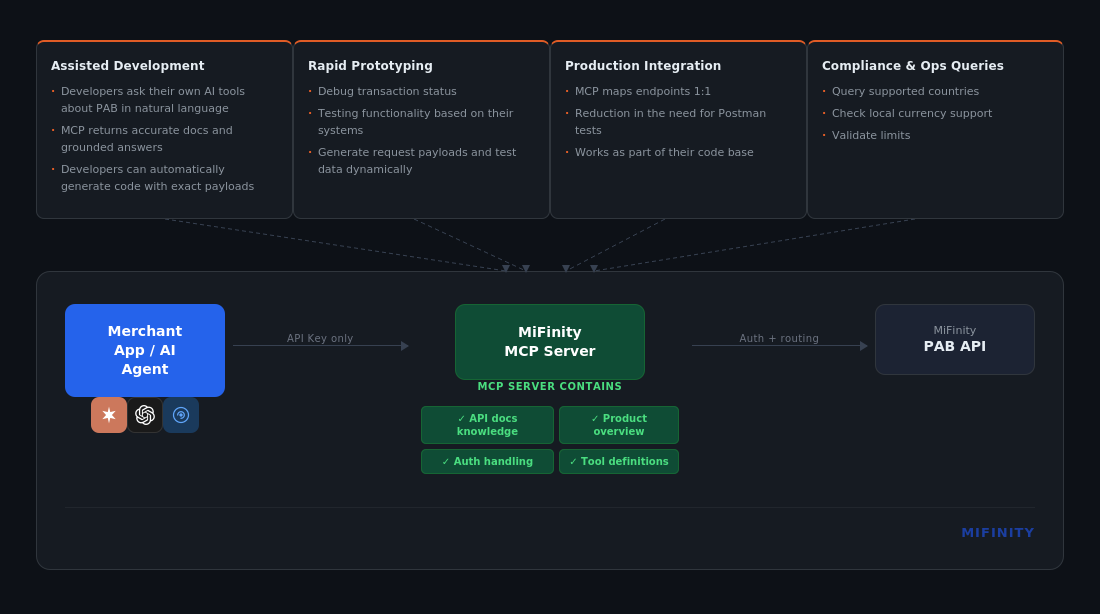
The AI PAB Gateway exposes 4 MCP tools:
1. get_supported_currencies
get_supported_currenciesCheck which currencies are supported for a specific country.
What currencies are supported for payouts to Germany?Returns: List of currency codes (e.g., EUR, USD, GBP).
2. get_bank_detail_fields
get_bank_detail_fieldsGet the required and optional fields for a specific country/currency combination.
What fields do I need for a GBP payout to the UK?Returns: List of required and optional fields with their formats.
Always call
get_bank_detail_fieldsbefore initiating a payout to ensure you provide all required fields.
3. get_bank_name
get_bank_nameGet the list of available banks or payment rails for a country/currency combination.
What banks are available for USD payouts to Hong Kong?Returns: List of bank names or payment methods. Not all country/currency combinations have multiple banks — some return a single method or an empty list.
4. initiate_bank_payout
initiate_bank_payoutSubmit a payout request.
Create a payout for €100 to Ireland:
- IBAN: IE29AIBK93115212345678
- Name: John Smith
- Source account: 1234567890
- Description: Invoice payment
Returns: Transaction ID and status.
- Call
get_bank_detail_fieldsfirst to confirm required fields for the destination country/currency.
- Your API key must have payout permissions.
- Production payouts are disabled by default and require the
MCP_PAB_PAYMENTS_ENABLEDfeature flag.- When enabled in production, payouts are real — verify all details carefully.
- Use the AI demo environment for all testing.
Troubleshooting
Tools not appearing
Symptoms: MCP server connected but no tools shown.
Diagnosis and resolution:
- Check your configuration file for valid JSON syntax.
- Verify the
MIFINITY_API_KEYenvironment variable is set:echo $MIFINITY_API_KEY - Confirm network connectivity to the gateway URL.
- Verify the URL is correct (production vs. demo).
- Contact the DevOps team to confirm your IPs are allowlisted.
- Restart your MCP client after making changes.
403 Forbidden error
Symptoms: All requests return 403.
Cause: Your source IP is not allowlisted.
Resolution:
- Confirm your public IP address:
curl https://api.ipify.org - Provide this IP to the DevOps team for allowlisting.
- Wait for confirmation before retrying.
- If you use a VPN, provide the VPN egress IP instead.
400 Bad Request (missing Bearer token)
Symptoms: Requests return 400.
Cause: The Authorization: Bearer <api_key> header is missing or malformed.
Resolution:
- Ensure the header is present and formatted as:
Authorization: Bearer <YOUR_MIFINITY_API_KEY> - Do not send legacy auth (
x-mifinity-api-key) or inlineKeyarguments — these are rejected.
401 Unauthorized error (API key rejected)
Symptoms: Requests return 401.
Cause: MiFinity rejected the API key (the Bearer header was present but the key is invalid).
Resolution:
- Verify the
MIFINITY_API_KEYenvironment variable is set correctly. - Check the API key has no extra spaces or surrounding quotes.
- Confirm the key exists in the MiFinity API system.
- Contact the API/development team if the issue persists.
Connection timeout
Symptoms: Requests time out or fail to connect.
Cause: Network connectivity issue or DNS resolution failure.
Resolution:
- Verify the URL is correct.
- Check DNS resolution:
nslookup mcp.payanybank.mifinity.com - Test connectivity:
curl -I https://mcp.payanybank.mifinity.com - Check firewall and proxy settings.
- Contact the DevOps team if the issue persists.
Invalid request error (400 on tool calls)
Symptoms: Tool calls return 400 errors.
Cause: Missing required fields or invalid data format.
Resolution:
- Call
get_bank_detail_fieldsfirst to check the required fields for your target country/currency. - Ensure all required fields are provided.
- Verify field formats match the specification.
- Confirm the country/currency combination is supported.
Security Best Practices
API Key Management
- Never hardcode API keys in code or configuration files.
- Use environment variables for all keys.
- Rotate keys periodically (quarterly recommended).
- Use separate keys for demo and production.
- Never commit keys to version control.
Support
For any queries about the usage of this MCP, please contact our integration support team.
Next Steps
After a successful integration:
- Test in the AI demo environment with demo data before moving to production.
- Implement error handling for network failures, rate limits, and validation errors.
- Monitor usage through your AI agent logs.
- Review additional documentation:
- Error Reference — Troubleshooting guide
- OpenAPI Specification — Full API details
Updated 4 months ago